



Author Archive
Adobe and Creative Suite 4
So Adobe has released it’s latest upgrade; Creative Suite 4 is available. As a Master Collection owner, I am looking at a hefty business cost, and I have been researching the benefits. Reading through the “new features” section under each program, there are some good improvements. But not finding the specifics, I have been checking out some of the videos on Adobe TV.
With my heavy workload, I do not have tons of time to spend on the web, so maybe everyone has seen this but me, but Adobe TV is a great resource. There are good tutorials and informational videos on all of their software, and setting up the Adobe Media Player gives free access to many videos including television programming and movies.
But I digress. The Adobe software I use most often is Photoshop, and to be honest, the new features will not help my daily workflow. I will, however continue to research, and look for that one reason to plunk down my hard earned cash. I will let you know.
Considerations when Rendering Green
For those of us doing architectural visualization, our libraries of plant materials are very important. As I have mentioned before, I create my own plant materials, but it is how they are blended into the rendering that is important.
One very important aspect to consider, is the color of green we use in our plants. If using from your library, adjust contrast and shadow to make the plant blend with the surroundings. Then, adjust the color with a color overlay or a curves adjustment layer.

In this example, I adjusted the palm color with a curves layer to make it blend with the early evening sky. I also added some highlights and shadows to the fronds with some sampled colors.
Transfer Info from Old to New Computer
This month I finally broke down and bought a new computer. That was the easy part. Transferring six years of essential information from my old computer was another story. I do, however, have some tips based on this interesting experence.
Create a spreadsheet of all login id and passwords. Keep it updated. On your new computer you will have to know every single one.
Create a spreadsheet with all software serial numbers. When reinstalling your software you will need every single one. To make it more fun, if any software is an upgrade, you will need the serial numbers from the current version and the previous one. Also review authorization procedures before starting this. Software from Adobe and Autodesk, for example, require you to transfer authorizations.
Email can be transferred by exporting from the old computer and importing on the new one. My email software, Microsoft Outlook, allows me to do this using a .pst file. You will also need to export browser favorites using the export and import procedure.
Save all preferences, if possible, from your software. For example, brushes, gradients, patterns, and style can all be saved from Photoshop and reloaded on your new computer.
If you are like me, and you have a tremendous amount of data files such as artwork, photos, Itunes, etc., an external hard drive will help you considerably. Copy all of that to the external on the old computer, and then just plug it into the new one. A simple trick, that took me a while to figure out, is that if you copy your iTunes Music Library.xml file from your old C Drive to the new C Drive, you can retain your library and playlists just the way they were before.
The most important thing: keep your old computer, plugged in, connected to the internet, and readily available. Two weeks after I started this process, I am still transferring vital tidbits from the old computer. Six years, in the computer world is a long time. You will not believe how much important “stuff” is stored there and taken for granted.
Traditional Art vs Digital Art
I recently watched a special on cable about the history of Pixar. The story evolves as John Lasseter tries to introduce computer animation to Disney, only to find them bewildered by the whole idea. He starts Pixar to follow his dream, and the industry of computer animated movies takes the world by storm. Strangely, as the traditional animators see the success of computer animation, they begin to abandon the traditional arts. As I see it, the medium doesn’t really matter. It is all about content, content, content. Pixar‘s recent film, “Ratatouille”, is beautiful graphically, but it is also a very entertaining and well developed story. I do not believe it invalidates the hand drawn “Jungle Book”, it is simply a different art medium.
I see a similar battle brewing between traditional art and digital art. Digital art seems to be winning on sci-fi and game art, but that whole genre doesn’t seem to be well supported in the established world of art. I find this odd in that most traditionally painted art these days is scanned into digital form and sold in quantity as “limited edition prints”. Something that really drove this home for me, I recently ran across a web site or “club” where users could join and submit their artwork. Digitally produced artwork was not permitted. Now it’s their club, they can make whatever rules they want, but again I believe beautiful art is beautiful art. Oils, watercolors, acrylics, digital are all just different vehicles for true artists to tell their stories on canvas. Just looking at the beautiful digital work of Philip Straub, Ryan Church, or Katarina Sokolova makes my point. Is there work art?
I have been giving this a lot of thought, because I make my living as a concept designer and artist. I began my career using traditional oil paints. For many years, however, I have been working digitally. My question: will my career as an artist be stifled by the establishment because it is digital, or will I follow in the trend Pixar set and enjoy the benefits of a new medium?
My belief – art should stand or fall on the merit of it’s content, and not the choice of art medium.
Watercolors by Winslow Homer
An inspiring book – Watercolors by Winslow Homer: The Color of Light – written by Martha Tedeschi with Kristi Dahm, has sent me once again on a new path. The book features many works by the great watercolorist, but more importantly, Homer’s techniques and materials are discussed as they related to each piece.
Of course, my mind began trying to develop digital techniques that would create some of these fantastic styles. Homer’s use of light and composition are also quite intriguing, causing me to rethink some of my own thoughts on highlights and subject relationships.
If you have never seen the works of Winslow Homer, the online National Gallery of Art Exhibition is very well done. The Art Institute of Chicago Exhibition also has very informative resources. You may want to check them out as well as this book, I recommend it highly.
On Painting Glass
One of the most difficult things, for me, is to get realistic looking glass when painting in Photoshop. As a great deal of my art is architectural, it is a very important part of each painting. Just as the eyes are important in painting portraits, I believe that the windows are what bring life to the building in architectural rendering. They are the “eyes” into the the building.
Unfortunately, each window seems to be done in a different way. I have never really come up with a set pattern, but here are some tips that I use. A window may be as simple as a solid color or a gradient. On a more complex level, the glass will consist of a multitude of layers. I will start with the interior, or what is on the other side of the glass. Then I will add the glass material itself, color, texture (if there is a texture to the glass), and try to arrive at the proper transparency level. Next comes the effect of the environment on the glass, a specular gradient, and then whatever is being reflected on the glass. Each of these will be put in place with different opacities and different blending modes. Again, none of the methods seem to be the same for each window, but by experimenting you can get it right.

There a number of factors to take into consideration when painting glass. Here are a few:
- Transparency level of the glass
- What is inside the window
- What is outside the window
- How the light is hitting the glass
- The angle of the glass to the viewer
- The specular light
- The shadows
- What is being reflected
- Window treatments, such as drapes or blinds inside
- The light inside
- The light outside
- The time of day
Sometimes, none of the above apply. If you notice in the rendering, I simply put a brighter light inside the only visible door to one of the condo units to make it a focal point of the image. Long live artistic license!
Text Display with Cleartype
If you are not familiar with Cleartype, Microsoft has developed an option that greatly improves the display of onscreen text. It works best on LCD monitors, such as laptops and flat panel displays. It may also improve readability on CRT monitors. If you are using Windows XP, it may not be running on your computer.
You can use the online tuner to turn it on and adjust the display to your preference. To access the tuner go to the Microsoft website.
Artwork at Dusk
I have been quite busy lately, producing various kinds of artwork, and even some website work. One project involved a concept and rendering of this small condominium unit.

Here are a couple of larger shots, details in architecture are very important. The additions of light fixtures and other stylized items add a little more realism to the concept.


I set the time of day at dusk just to add a little atmosphere. Used effectively, unusual weather or time of day can create additional mood in an architectural rendering. If you would like to see more of my work, check out my portfolio at www.BlueNoseGopher.com
Photoshop Groups
Here is a quick tip you may not know about, but it is one that saves me a lot of time. If you are like me, you use a lot of layers when creating an image. Sometimes I may have hundreds of layers. To keep them organized and manageable, I arrange related layers in groups. The usual way to do this would be to create the group using the pulldown, and then, on the layers palette, select the layers and slide them into the new group.

There is a quicker way. Go to the layers palette and select the layers you wish to group. Then just use the keyboard shortcut ctrl-G. Instantly the group will be created, and the selected layers will be placed into the new group.
Color Blending in Photoshop
One of the issues in using Photoshop for artwork, involves the blending of colors during brush strokes. The solution is found under Color Dynamics in the brush palette. The first setting allows you to set the jitter between the foreground and background colors. This will create color variations while you paint.
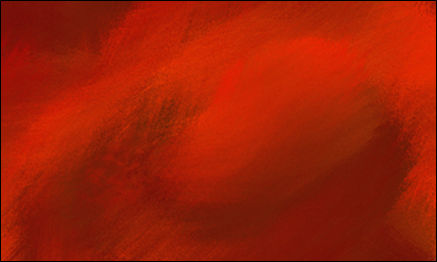
A favorite setting of mine involves setting the Control option to “Fade”. This will blend the foreground color into the background color as you paint, creating a color gradient during the brush stroke. The number adjacent to the “Fade” setting sets how quickly or slowly the background color blends into the foreground color.
Fonts in Web Design
Tired of sticking with Verdana and Arial in web design, I did some research to find out what other options might be possible. For those of you not familiar with font usage in web design, when using html and css, the font specified for text must be available on every viewer’s computer. This means the designer is limited to common fonts that are actually shipped as Windows or Mac system fonts. The css specification would be (font-family: Verdana, Arial, sans-serif). Several fonts can be listed as the browser will go down through the list until it finds an available font. The last one listed is commonly a “font family” so if none of the fonts are found, the browser will use the generic family.
The general common fonts I found did not expand the list dramatically, but it did create some possibilities. I will show them here by name using the font specification in css. The font size on all is 16px. As you can see, some fonts display larger than others. (The display of this list actually depends on fonts found on your computer.)
Arial
Verdana
Trebuchet MS
Comic Sans MS
Courier New
Georgia
Times New Roman
Impact
A font that is common on the Mac, Lucida Grande, can be found as Lucida Sans Unicode in Windows.
Lucida
Two more fonts that are very common, but not a sure thing are:
Geneva
Helvetica
Here is a listing of the typical font families. Again the way they display is dependent on the fonts found on your computer.
sans-serif
serif
cursive
fantasy
monospace
I hope this adds some options to your efforts using css on the web.
Gradients in Design
This is just a little tip to provide some options in design and art. Instead of using a solid color, try using a gradient, even if the color variation is subtle. In graphic design, it can add a little more visual interest to a page layout or a web design.
When added to your artwork, it can add a little more realism to an otherwise flat element. A gradient can also form the basis for the sky in a concept that appears outdoors. A gradient can help develop some inexpensive radiosity when doing 3d work. It can be part of the map used in a material, or it can be added afterwards in Adobe Photoshop or Painter.
As with most elements, I will often develop gradients and add them to my library. Then when the design calls for a gradient, I have a whole collection from which to choose. This not only helps keep the mind focused on the design, but allows trying color combinations very quickly.